Want to land more interviews?
Your resume is the most important document you have in your job search. And here’s the kicker…
Most people mess it up completely.
The good news? Building the perfect resume on your laptop just got easier. No pricey software. No design degree required. Just a process that works.
Here is how to do it…
On the table today:
- What You Need Before Opening Your Laptop
- The Best Software For Writing A Resume
- How To Structure The Perfect Resume
- Writing Content That Actually Gets Read
- Formatting Tips That Beat The Bots
- Saving And Sending It The Right Way
What You Need Before Opening Your Laptop
Before touching the keyboard, a little prep work goes a long way.
Why? Because recruiters are ruthless. Eye-tracking studies reveal that recruiters scan resumes for just 7.4 seconds on the first pass. This means every word on your page is in a fight for attention.
Start by gathering:
- Work history (dates, titles, companies)
- Your biggest wins at each job (with numbers)
- Education and certifications
- A list of keywords pulled from the job description
- 2-3 recent job ads for roles you actually want
This last point is the most important one to note. The job ads let you know exactly what words to use. And, if you want a drastic shortcut, there are some AI tools that are designed for crafting the perfect resume that will extract those keywords for you right out of the job description.
Once the raw material is ready on your laptop, the writing part becomes fast.
The Best Software For Writing A Resume On Your Laptop
You don’t need fancy software to create a powerful resume. Your laptop already has the tools.
The top 3x options to use right now are:
- Microsoft Word
- Google Docs
- A dedicated resume builder
In that order.
Let’s break each one down.
Microsoft Word
Microsoft Word is still king when it comes to resume writing. In fact, the .docx format is the most expected by hiring managers because it is easy to edit, comment, and share.
Bonus: Templates are built in and free to use. Open a new document and search “resume” in the template gallery.
Google Docs
Google Docs is the best free alternative. It works in any browser and auto-saves every keystroke to the cloud. That means no crashes and no lost work.
The built-in templates are clean and ATS-friendly. And the best part? You can download your finished resume as a .docx or .pdf with one click.
A Dedicated Resume Builder
If you’re not a design guru, a resume builder might be your new best friend. These things take care of all the formatting so you can focus 100% on content.
But not all parsers are created equal. Some generate files which are riddled with errors the moment they are processed by ATS software. More on this below.
How To Structure The Perfect Resume
Structure matters more than most job seekers realise.
Why? Because formatting is the first thing a recruiter actually sees, and 92% of recruiters favor a clear, scannable format over just about anything else.
Your resume should follow this exact order:
- Header — Name, phone, email, city, LinkedIn URL
- Professional summary — 3-4 sentences that sell you instantly
- Work experience — Most recent job first, with bullet points underneath
- Education — Degrees and certifications
- Skills — A clean list of 8-12 relevant skills
One page, if you have less than 10 years experience. The strict maximum is two pages for everyone else.
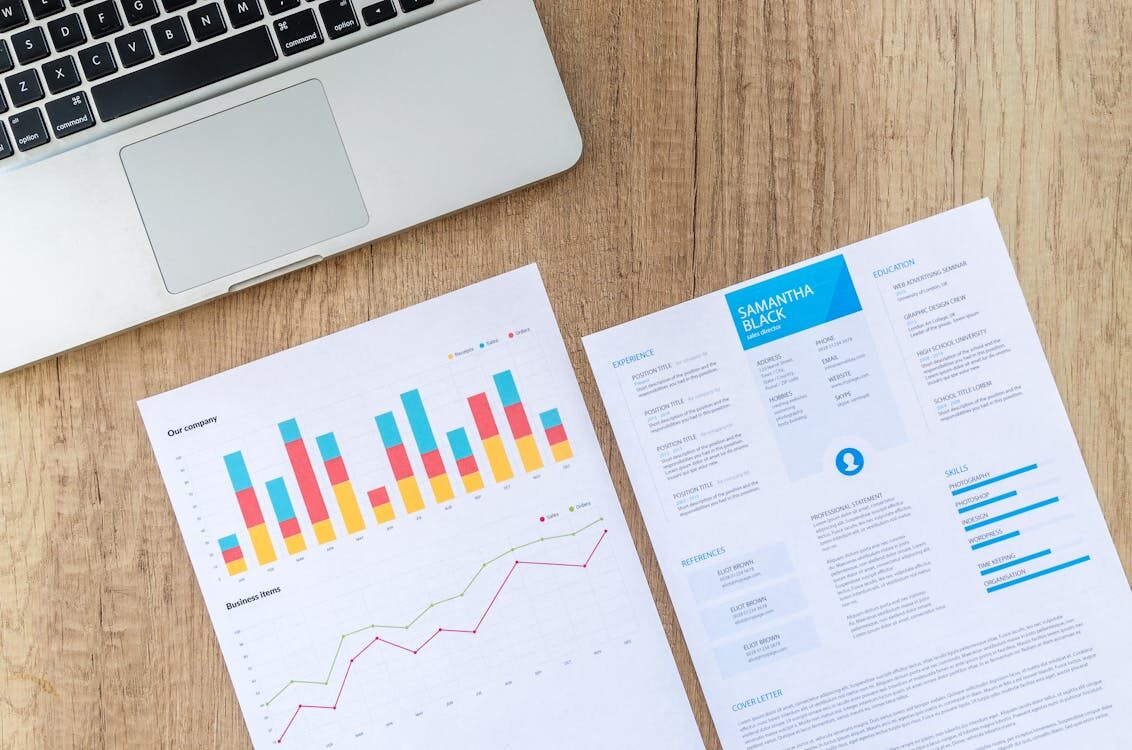
Did you notice that there is no picture, no graphics, and no funky columns? That was intentional.
Writing Content That Actually Gets Read
Here is where most people mess up.
They write job descriptions instead of achievements. Huge mistake.
Here is the difference:
- Weak: “Responsible for managing the sales team”
- Strong: “Led a team of 8x sales reps to achieve 142% of annual revenue target”
See the difference? Numbers make achievements feel real.
Every bullet point should follow this simple formula:
Action verb + What you did + Result (with numbers)
Some powerful action verbs to lean on:
- Led
- Built
- Launched
- Grew
- Cut
- Saved
Avoid weak words such as “helped,” “assisted,” or “worked on.” They make you sound entirely passive.
The rest can be shorter, too. Hiring managers have no clue what you mean by adjectives like “team player” or “hard worker” or “detail-oriented.” Tell them with stories, not by just using these buzzwords.
Formatting Tips That Beat The Bots
Here’s something most job seekers don’t know…
Close to 98% of Fortune 500 companies use Applicant Tracking Systems to scan resumes before a human even sees them. If your formatting confuses the software, your resume ends up at the bottom of the pile.
To keep your resume ATS-friendly:
- Use standard headings (Experience, Education, Skills)
- Stick to one column
- Use simple fonts like Arial, Calibri, or Georgia
- Keep font size between 10-12pt
- Avoid tables, text boxes, and images
- Use bullet points (not paragraphs) under each job
Don’t include your contact information in the header or footer either. Many ATS programs ignore these sections altogether.
Keep it simple. Let your work speak for itself. This is not a platform for being flashy.
Saving And Sending It The Right Way
You have the perfect resume on your laptop. Now what?
Save it the right way:
- Save as both .docx AND .pdf
- Name the file clearly — “FirstName_LastName_Resume.pdf”
- Never use names like “resume_final_v3_FINAL.docx”
Unless the job ad explicitly asks for a .pdf, send your resume as a .docx. Word docs usually parse better on older ATS systems.
Final tip… open the file on a second device, like your phone or another computer. Double check that everything looks good. Formatting gets wonky between programs, and you don’t want a hiring manager to be the first person to notice it.
Bringing It All Together
You don’t need fancy software or a degree in graphic design to create the perfect resume on your laptop. All you need is a simple, repeatable process that focuses on content first.
To quickly recap:
- Gather your work history and target keywords first
- Use Microsoft Word, Google Docs, or a trusted builder
- Follow a clean, skimmable structure
- Write achievements, not job descriptions
- Format for both humans and ATS bots
- Save as both .docx and .pdf with a clear filename
The truth is that most job seekers invest hours and hours into finessing fonts and colours when they should be investing that energy into content. Turn it upside down. Great content always trumps great design.
Now open your laptop, follow the steps above, and start building the resume that finally gets you noticed.